Why Can’t I See My PDF Thumbnails in Windows 11? (Easy Fix!) 🛠️📄
By Admin | Category: Pdf tools | Views: 0
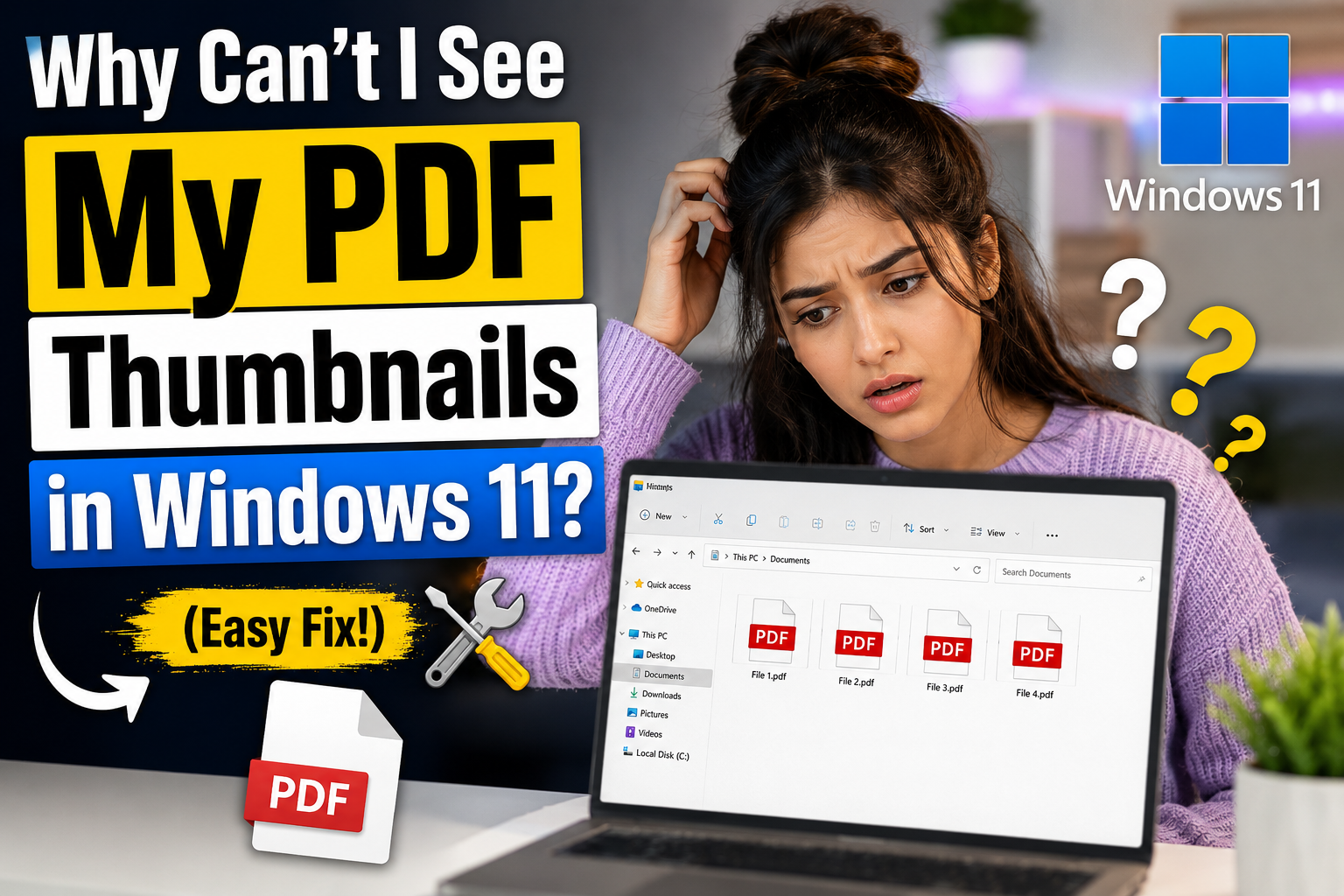
Have you ever opened your Downloads or Documents folder in Windows 11, hoping to quickly spot a specific PDF file, only to find a generic, boring white icon instead of a helpful visual preview?
It is incredibly frustrating! Instead of seeing a tiny image of the first page (a thumbnail), you are forced to read every single file name just to find the right document. 📊✨
If you are facing this issue—especially with PDF files generated by online tools, third-party software, or home-hosted web applications—you are not alone.
Let’s talk about why this happens in Windows 11 and exactly how to fix it in less than two minutes! 😊
The Core Reason: Windows 11 Security & Third-Party Apps 🔒
Windows 11 is built with much tighter security protocols than older operating systems. One of its safety mechanisms involves how it handles files created outside the native Microsoft ecosystem (like PDFs generated from web tools, local servers, or custom software).
Here is what goes on behind the scenes:
The Security Guard Block: When a PDF is generated externally, Windows 11 treats its internal metadata with caution. To save system resources and protect your computer, the Windows File Explorer stops background scripts from automatically rendering previews for unrecognized file structures.
Missing PDF Handler: Unlike images (.jpg or .png), Windows doesn't natively know how to extract a visual preview from a PDF file structure without a designated "helper" program telling it exactly how to read the file's layout.
How to Make Your PDF Previews Show Up Instantly ✨
Don't worry! You don't need to be a tech genius to solve this. Here are the two easiest ways to bring your PDF thumbnails back to life.
Method 1: The Adobe Acrobat Reader Fix (Most Popular) 💡

If you use Adobe Acrobat Reader, it has a built-in feature designed exactly for this purpose.
Open Adobe Acrobat Reader.
Click on Menu (or Edit in older versions) in the top left corner and select Preferences.
In the Categories list on the left, click on General.
Check the box that says: "Enable PDF thumbnail previews in Windows Explorer".
Scroll down, click OK, and let Windows quickly install the tiny preview component.
Suddenly, all your generic icons will transform into beautiful, visual page previews! 🎉
Method 2: Check Your Windows View Settings ⚙️
Sometimes, Windows 11 has a global setting turned on that completely disables all previews to save performance. Let's make sure it's turned off:
Open File Explorer (any folder).
Click on the Three Dots (...) at the top menu bar and select Options.
Go to the View tab.
Look at the very first checkbox: "Always show icons, never thumbnails".
Make sure this box is UNCHECKED. If it is checked, Windows will block all previews across your entire computer.
Click Apply and then OK.
A Quick Bonus Tip 💡
If you tried the steps above and a specific file still shows a blank icon, right-click the file, select Properties, and look at the bottom of the General tab. If you see a security message saying "This file came from another computer...", simply check the Unblock box and click Apply.
Conclusion 👋
Windows 11’s strict security might occasionally hide your PDF views, but with these quick adjustments, you can regain a beautifully organized, visual workspace. No more guessing games or clicking through dozens of files blindly!
Did this quick guide help you clear up your folder clutter? Let us know in the comments below! 💬👇
Comments
No comments yet. Be the first to comment!