JPG to PDF Without Upload
By Admin | Category: Jpg to Pdf Tool | Views: 0
JPG to PDF Without Upload – The Ultimate 2026 Guide for Fast, Secure & Easy Conversion 🚀
We’ve all been there — you have a bunch of JPG images that you need to turn into a single PDF. Maybe it’s for a school project, a work report, a portfolio, or just to keep your memories organized. But then you realize… most online tools ask you to upload your images to their servers. 😟
That’s where the problem starts: uploading takes time, it can be risky for your privacy, and sometimes the internet connection just isn’t fast enough. What if you could convert JPG to PDF without upload — instantly, securely, and right in your browser? 💡
Good news: You can! And the best part? It’s completely free and works on any device. Meet the JPG to PDF Converter by PakTheta — a lightning-fast, privacy-friendly tool that lets you create professional PDFs in seconds. ⚡
Why "JPG to PDF Without Upload" is a Game-Changer 🏆
Let’s be honest — time and privacy are two things we all value. When you use a traditional online converter, your images are uploaded to a server, processed, and then sent back to you. This means:
- ⏳ You waste time waiting for uploads and downloads.
- 🔓 Your private images are stored (even temporarily) on someone else’s server.
- 📶 You need a stable internet connection for large files.
With JPG to PDF without upload, everything happens locally in your browser. Your images never leave your device. That means:
- ⚡ Instant conversion — no waiting.
- 🔒 100% privacy — your files stay with you.
- 📱 Works even on slower internet connections.
Step-by-Step Guide: Convert JPG to PDF Without Upload 📋
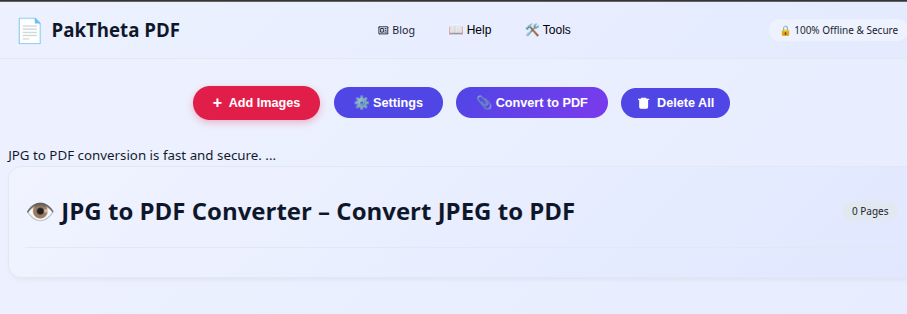
1️⃣ Click the "Add Images" Button
Go to the JPG to PDF Converter and click Add Images. Select all the JPG files you want to include. The moment you add them, you’ll see an instant preview — no waiting for uploads! ⏱️
2️⃣ Arrange, Rotate, or Delete Images
In the preview area, you can:
- 🔄 Rotate images to fix orientation.
- ❌ Delete any image you don’t want in the final PDF.
- 📂 Drag & Drop to rearrange the order of images.
3️⃣ Adjust PDF Settings
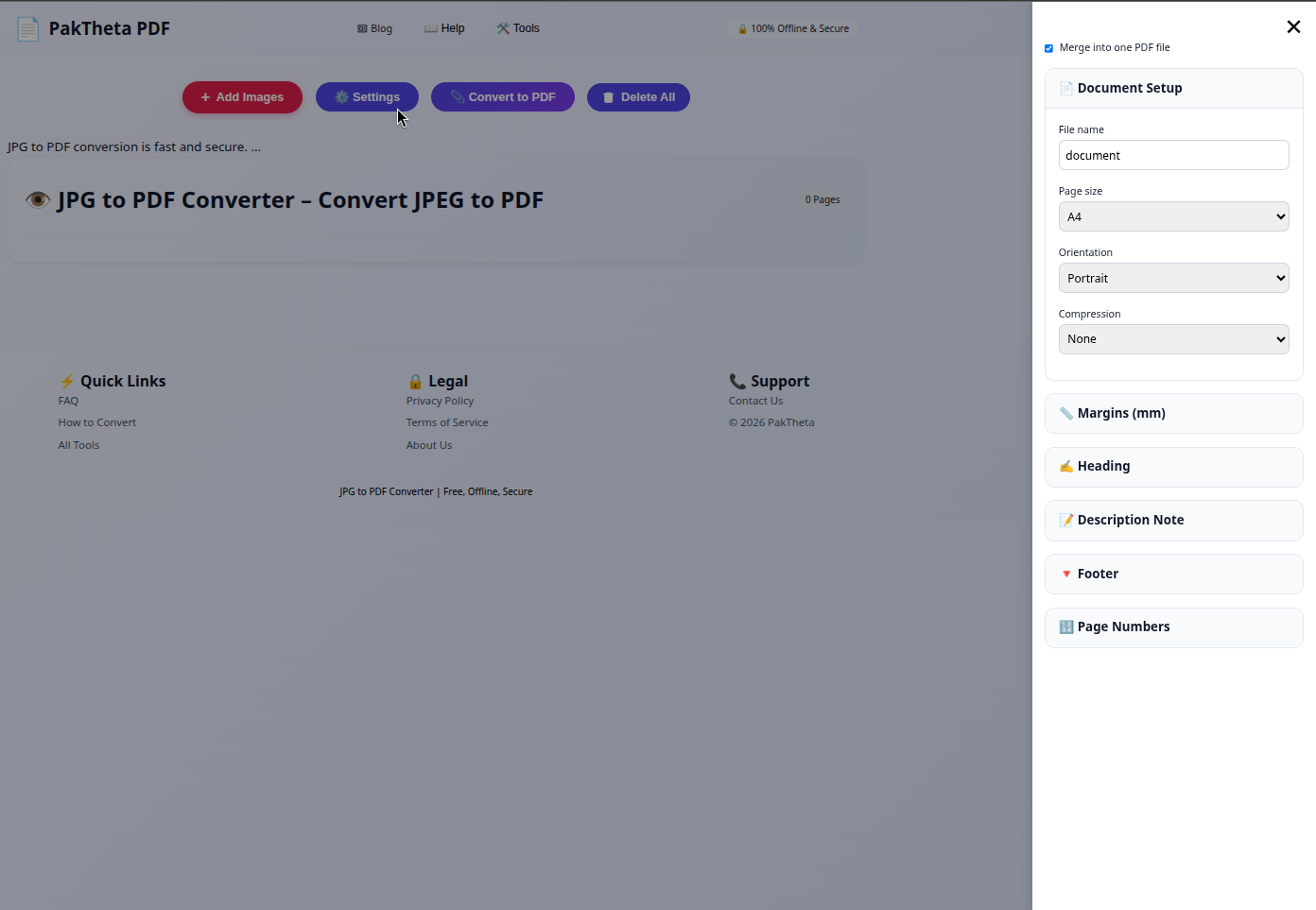
Click the Settings button to customize your PDF:
- 📝 File Name: Choose a custom name for your PDF.
- 📄 Page Size: A4, Letter, Legal, and more.
- 📐 Orientation: Portrait or Landscape.
- 📏 Margins: Set custom margins for a clean layout.
- 📉 Compression: Reduce file size without losing quality.
- 🏷️ Heading Text: Add a title to your PDF.
- 🖊️ Description Note: Include a short description.
- 🦶 Footer Note: Add footer text for branding or notes.
- 🔢 Page Numbers: Automatically number your pages.
4️⃣ Click the "Convert to PDF" Button
Once you’re happy with the preview and settings, click Convert to PDF. Your PDF will be generated instantly and downloaded to your device. 🎯
Deep Dive: Understanding Every Feature in Detail 🔍
📂 Add Images
This is where your journey starts. The Add Images button lets you select multiple JPG files at once. You can even select them from different folders. The tool supports drag-and-drop, so you can simply drop your images into the browser window.
🔄 Rotate Images
Sometimes, scanned documents or photos are sideways. The rotate feature lets you fix this instantly without opening another app. You can rotate left or right until the image is perfectly aligned.
❌ Delete Images
Not every image you add needs to be in the final PDF. The delete option lets you remove unwanted images instantly from the preview area.
📂 Rearrange Images
Order matters! Whether you’re creating a photo album or a report, you can drag and drop images to arrange them exactly how you want them to appear in the PDF.
📄 Page Size
Choose from standard sizes like A4, Letter, Legal, or even custom dimensions. This is especially useful for printing purposes.
📐 Orientation
Switch between portrait and landscape modes depending on your content. Landscape is great for wide images, while portrait is perfect for documents.
📏 Margins
Set margins to ensure your content doesn’t touch the edges of the page. This is important for professional documents and printing.
📉 Compression
Reduce file size without losing quality. This is perfect for emailing PDFs or uploading them to websites with file size limits.
🏷️ Heading Text
Add a title to your PDF. This could be the name of a project, a report title, or even a personal note.
🖊️ Description Note
Include a short description or summary at the beginning of your PDF. This is great for reports or portfolios.
🦶 Footer Note
Add footer text for branding, page references, or disclaimers.
🔢 Page Numbers
Automatically number your pages for easy navigation, especially in multi-page documents.
15+ Real-Life Use Cases 📚
Here’s how different people can benefit from converting JPG to PDF without upload:
📖 Students
Compile scanned notes, assignments, and project images into a single PDF for easy submission.
🏢 Professionals
Create polished reports, proposals, or portfolios without risking sensitive data online.
📷 Photographers
Organize and present your work in a clean, professional PDF format.
🏠 Personal Use
Turn family photos into a beautiful PDF album to share or print.
⚖️ Lawyers
Combine scanned legal documents into a single PDF for court submissions or client records.
🏫 Teachers
Prepare lesson materials, worksheets, and visual aids in PDF format for easy distribution.
🛍️ E-commerce Sellers
Create product catalogs from JPG images for clients or online listings.
🏥 Healthcare Professionals
Compile patient records, scans, and reports into a single PDF for secure storage.
🎨 Designers
Present design mockups and concepts in a professional PDF portfolio.
📚 Authors
Combine book illustrations or scanned manuscripts into a single PDF for publishers.
🏗️ Engineers
Merge technical drawings and site photos into a single PDF for project documentation.
🎓 Researchers
Compile scanned research notes, diagrams, and charts into a single PDF for sharing.
🎭 Event Planners
Create visual event proposals with images, layouts, and decoration ideas in PDF format.
🏛️ Government Offices
Digitize and compile official forms, IDs, and certificates into secure PDFs.
📈 Marketers
Prepare visual marketing reports and campaign snapshots in PDF format.
FAQs – JPG to PDF Without Upload ❓
1. Is my data safe?
Yes! Since the conversion happens in your browser, your images never leave your device.
2. Can I change the order of images?
Absolutely. Just drag and drop images in the preview area.
3. Does it work on mobile?
Yes, it works perfectly on smartphones, tablets, and desktops.
4. Can I compress the PDF?
Yes, you can adjust compression settings to reduce file size without losing quality.
5. Is it free?
Yes, it’s completely free to use.
6. Can I add text to my PDF?
Yes, you can add headings, descriptions, and footer notes.
7. Does it support PNG or other formats?
Currently, it’s optimized for JPG, but you can convert PNG to JPG first and then use it.
8. Will it work offline?
Yes, as long as the page is loaded, the conversion happens locally without internet uploads.
9. Can I merge multiple PDFs?
This tool is for JPG to PDF, but you can use a separate PDF merger afterward.
10. Is there a file size limit?
No strict limit, but performance depends on your device’s memory.
11. Can I use this tool without internet?
Yes, once the page is loaded, the conversion process happens locally in your browser. You can even disconnect from the internet and still complete the conversion.
12. Does it work on all browsers?
It works best on modern browsers like Chrome, Edge, Firefox, and Safari. Older browsers may not support all features.
13. Can I set a custom page size?
Yes, you can choose from standard sizes like A4, Letter, Legal, or enter custom dimensions in the settings.
14. Will the quality of my images be reduced?
By default, the tool preserves original quality. You can enable compression if you want smaller file sizes.
15. Can I add a watermark?
Currently, watermarking is not built-in, but you can add one later using a PDF editor.
16. How many images can I add at once?
You can add as many as your device’s memory can handle. For best performance, keep it under 200 images at a time.
17. Can I use it for scanned documents?
Yes, it works perfectly for scanned pages, receipts, and handwritten notes.
18. Is there a limit on file size?
No strict limit, but very large images may slow down processing depending on your device.
19. Can I save my settings for future use?
Currently, settings reset when you refresh the page, but you can bookmark the tool for quick access.
20. Does it support batch conversion?
Yes, you can add multiple images and convert them all into a single PDF in one go.
21. Can I rearrange images after adding them?
Yes, simply drag and drop them in the preview area to change their order.
22. Will my PDF be searchable?
If your images contain text, the PDF will not be searchable unless you run OCR (Optical Character Recognition) afterward.
23. Can I use it on iPhone or Android?
Yes, it’s fully mobile-friendly and works on both iOS and Android devices.
24. Is there any hidden cost?
No, the tool is completely free to use with no hidden charges.
25. Can I share the PDF directly from the tool?
Once the PDF is downloaded, you can share it via email, messaging apps, or cloud storage.
26. Does it require installation?
No installation is needed — it works directly in your browser.
27. Can I use it for confidential documents?
Yes, since files never leave your device, it’s safe for confidential materials.
28. Will it work on Linux?
Yes, it works on any operating system with a modern browser.
29. Can I add page numbers automatically?
Yes, enable the page numbering option in settings before converting.
30. Can I preview the PDF before downloading?
Yes, the preview area shows exactly how your PDF will look before you click convert.
Troubleshooting Common Issues 🛠️
🖼️ Images not loading?
Make sure your images are in JPG format. If they are PNG or another format, convert them to JPG first.
🐢 Conversion feels slow?
Large, high-resolution images take longer to process. Try enabling compression or reducing image resolution.
📏 PDF layout looks wrong?
Check your page size, orientation, and margin settings before converting.
📱 Issues on mobile?
Ensure you’re using a modern mobile browser like Chrome or Safari. Clear cache if problems persist.
💾 PDF not downloading?
Check your browser’s download settings. Some browsers block automatic downloads — enable them for this site.
Security & Privacy – Why This Tool is Safer 🔒
Most online converters upload your files to a remote server for processing. This means your private images are stored (even temporarily) on someone else’s system. With PakTheta’s JPG to PDF without upload tool:
- ✅ All processing happens locally in your browser.
- ✅ No files are sent to any server.
- ✅ No risk of data leaks or unauthorized access.
- ✅ Works even on confidential or sensitive documents.
Comparison: PakTheta vs Other JPG to PDF Tools 📊
| Feature | PakTheta JPG to PDF | Typical Online Converter |
|---|---|---|
| Requires Upload | ❌ No | ✅ Yes |
| Speed | ⚡ Instant | 🐢 Slower (depends on internet) |
| Privacy | 🔒 100% Local | ⚠️ Files stored on server |
| Custom Settings | ✅ Yes | ⚠️ Limited |
| Works Offline | ✅ Yes | ❌ No |
Pro Tips for Best Results 💡
- 📌 Use high-resolution images for the best print quality.
- 📌 Arrange images in the correct order before converting.
- 📌 Use compression settings to reduce file size for email sharing.
- 📌 Add page numbers for multi-page documents.
- 📌 Use margins for a clean, professional look.
- 📌 Test different page sizes to see which fits your content best.
Final Thoughts 💬
Converting JPG to PDF without upload has never been this easy. With PakTheta’s JPG to PDF Converter, you get speed, security, and full control over your files. No more waiting, no more privacy worries — just instant, professional PDFs in seconds. ⏳✨
Whether you’re a student, professional, photographer, or just someone who values privacy, this tool is your best friend for quick, secure, and high-quality PDF creation.
Try it now and experience the difference: Convert JPG to PDF Instantly 🚀
Comments
No comments yet. Be the first to comment!