How to Convert PDF to JPG Online (Free, Fast & Secure) | Paktheta
By Admin | Category: Pdf tools | Views: 0
Published: 5 months ago
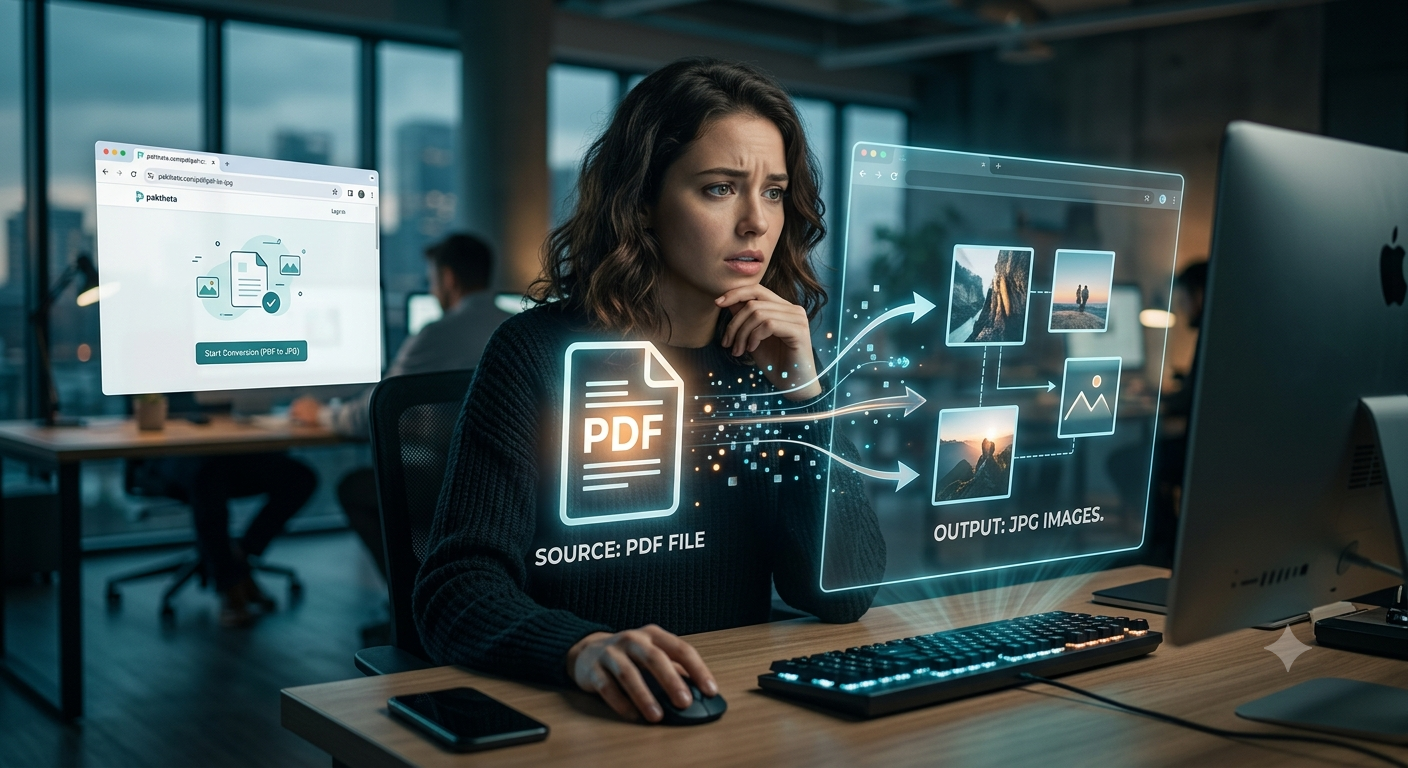
Meta Description: Learn how to convert PDF to JPG in seconds! Free, fast, and 100% secure online tool. No watermark, no limits, no signup. Try now at paktheta.com/pdf/pdf-to-jpg
Introduction: Why Converting PDF to JPG Matters
Have you ever been in this situation? 🤔
You receive an important PDF document—maybe it's a contract, an invoice, or a presentation. But wait! You need to extract just ONE page as an image to share on social media, or maybe you need to insert it into a PowerPoint presentation, or perhaps you just want to use it as a profile picture.
The problem? PDFs are great for documents, but terrible for images.
You try to screenshot it. The quality is horrible. 😤
You try online converters. They ask for payment after 2 files. 💸
You try desktop software. It takes forever to install. ⏰
Sound familiar? You're not alone.
Millions of people face this exact problem every single day. Students need to extract diagrams from textbooks. Freelancers need to showcase portfolio pages. Businesses need to convert invoices into images for their records.
The good news? There's a better way. A faster way. A FREE way.
And in this guide, I'm going to show you exactly how to convert PDF to JPG in seconds—without watermarks, without limits, and without compromising your privacy.
Let's dive in! 🚀
Why Convert PDF to JPG? Real-World Use Cases
Before we jump into the "how," let's talk about the "why." When would you actually need to convert a PDF to JPG?
1. Social Media Sharing 📱
You've created a beautiful infographic or quote in PDF format. But Instagram, Facebook, and Twitter don't accept PDFs. You need JPG images to get those likes and shares!
2. Presentations & Reports 📊
PowerPoint and Google Slides work best with images. Converting PDF pages to JPG lets you easily insert professional graphics into your presentations.
3. E-commerce & Product Listings 🛒
Online marketplaces like Amazon, eBay, or Etsy require product images in JPG format. If your product catalog is in PDF, you'll need to convert it.
4. Documentation & Archiving 📁
Sometimes you need individual images from scanned documents for better organization and easier access.
5. Web Development 🌐
Website builders need images, not PDFs. Converting to JPG makes your content web-ready.
6. Printing & Marketing Materials 🖨️
Designers often need to extract specific pages from PDFs to use in brochures, flyers, or posters.
The bottom line? PDF to JPG conversion isn't just a "nice-to-have" feature—it's an essential tool for students, professionals, entrepreneurs, and creatives alike.
The Problem with Traditional PDF to JPG Converters
Here's the harsh reality: Most "free" PDF converters aren't really free. 😒
Common Frustrations:
❌ Daily Limits: "You've converted 2 files. Upgrade to premium!"
❌ Watermarks: Your beautiful images ruined by ugly logos
❌ Slow Uploads: Waiting 5-10 minutes for a simple conversion
❌ Privacy Risks: Your sensitive documents uploaded to unknown servers
❌ Poor Quality: Compressed, pixelated images that look unprofessional
❌ Hidden Costs: "Free trial" that automatically charges your card
❌ Watermarks: Your beautiful images ruined by ugly logos
❌ Slow Uploads: Waiting 5-10 minutes for a simple conversion
❌ Privacy Risks: Your sensitive documents uploaded to unknown servers
❌ Poor Quality: Compressed, pixelated images that look unprofessional
❌ Hidden Costs: "Free trial" that automatically charges your card
I've been there. And it's frustrating.
That's why I'm excited to share a solution that solves ALL these problems.
Introducing Paktheta PDF to JPG Converter 🎉
paktheta.com/pdf/pdf-to-jpg is not just another converter. It's a game-changer.
What Makes It Different?
✅ 100% FREE Forever - No limits, no premium plans, no credit card required
✅ NO Watermark - Clean, professional images every time
✅ Lightning Fast - Convert in seconds, not minutes ⚡
✅ 100% Secure & Private - Files NEVER leave your device 🔐
✅ NO Signup Required - Just open and convert
✅ Unlimited Conversions - Convert 1 file or 1,000 files
✅ High-Quality Output - Crystal-clear images, every time
✅ Works Offline - Once loaded, disconnect internet and use!
✅ NO Watermark - Clean, professional images every time
✅ Lightning Fast - Convert in seconds, not minutes ⚡
✅ 100% Secure & Private - Files NEVER leave your device 🔐
✅ NO Signup Required - Just open and convert
✅ Unlimited Conversions - Convert 1 file or 1,000 files
✅ High-Quality Output - Crystal-clear images, every time
✅ Works Offline - Once loaded, disconnect internet and use!
But wait, there's more!
Advanced Features (That Other Tools Charge For):
🎨 Quality Control - Choose between low, medium, high, or maximum quality
📐 Page Selection - Convert all pages or select specific ones
🖼️ Custom Resolution - Adjust DPI for your specific needs
📦 Bulk Conversion - Extract multiple pages at once
Preview Before Download - See exactly what you're getting
📥 Individual or ZIP Download - Your choice!
📐 Page Selection - Convert all pages or select specific ones
🖼️ Custom Resolution - Adjust DPI for your specific needs
📦 Bulk Conversion - Extract multiple pages at once
Preview Before Download - See exactly what you're getting
📥 Individual or ZIP Download - Your choice!
Step-by-Step Guide: How to Convert PDF to JPG
Ready to convert your first PDF? Let me walk you through it. It's easier than making instant coffee! ☕
Step 1: Visit the Tool 🌐
Open your browser and go to: paktheta.com/pdf/pdf-to-jpg
That's it. No download. No installation. No account creation.
Step 2: Upload Your PDF 📁
You have three options:
Option A: Click "Select PDF File" and choose from your computer
Option B: Drag and drop your PDF directly onto the page
Option C: Import from Google Drive or Dropbox (if available)
Option B: Drag and drop your PDF directly onto the page
Option C: Import from Google Drive or Dropbox (if available)
Pro Tip: The tool supports PDFs up to 100MB. That's like 500+ pages!
Step 3: Choose Your Settings ⚙️
Now comes the fun part. Customize your conversion:
Quality Settings:
- Low Quality - Smaller file size, good for web
- Medium Quality - Balanced (recommended)
- High Quality - Better quality, larger file size
- Maximum Quality - Perfect for printing
Page Selection:
- All Pages - Convert the entire PDF
- Specific Pages - Enter page numbers (e.g., "1, 3, 5-10")
Resolution:
- 72 DPI - Web standard
- 150 DPI - Good quality
- 300 DPI - Print quality
- 600 DPI - Professional/archival quality
Step 4: Convert! 🚀
Click the big blue "Convert to JPG" button.
Watch the magic happen. ⚡
For a 10-page PDF, conversion takes about 3-5 seconds. Yes, SECONDS. Not minutes.
Step 5: Download Your Images 📥
You have two options:
Option 1: Download Individual Images
- Preview each page
- Click "Download" on the ones you want
- Perfect for when you only need specific pages
Option 2: Download All as ZIP
- One click downloads everything
- Organized and ready to use
- Best for bulk conversions
And that's it! You're done. 🎊
Real-Life Examples: How People Use This Tool
Let me share some real stories from people who've used Paktheta's PDF to JPG converter:
Story #1: The Student 🎓
Sarah, a university student, had a 200-page textbook in PDF format. Her professor asked everyone to analyze specific diagrams and share them in class.
Old way: Screenshot each diagram (blurry, unprofessional)
New way: Convert the specific pages to high-quality JPGs in seconds
New way: Convert the specific pages to high-quality JPGs in seconds
Result: Sarah got an A+ on her presentation. Her classmates? Still screenshotting. 😅
Story #2: The Freelancer 💼
Ahmed, a graphic designer, needed to showcase 15 portfolio pages on Instagram. Instagram doesn't accept PDFs.
Old way: Pay $15/month for Adobe Acrobat
New way: Free conversion with Paktheta
New way: Free conversion with Paktheta
Result: Saved $180/year. Got 3 new clients from Instagram posts.
Story #3: The Small Business Owner 🏪
Maria, who runs an online boutique, had her product catalog in PDF. She needed individual product images for her website.
Old way: Manually screenshot 50+ products (3 hours of work)
New way: Bulk convert all pages in 30 seconds
New way: Bulk convert all pages in 30 seconds
Result: Launched her website 2 days early. More sales, less stress.
Story #4: The Teacher 👨🏫
Mr. Johnson needed to extract worksheets from a PDF textbook to share with his students online.
Old way: Print, scan, upload (quality loss + time waste)
New way: Convert to JPG, upload directly
New way: Convert to JPG, upload directly
Result: Students got crystal-clear images. Mr. Johnson saved 5 hours per week.
Why Privacy Matters (And Why You Should Care) 🔐
Let's talk about something most converters don't want you to think about: Your Data.
When you use traditional online converters, here's what happens:
- You upload your PDF to THEIR server
- Their server processes it
- They "promise" to delete it after 24 hours
- But who's really checking? 🤔
What if your PDF contains:
- Personal identification documents
- Financial statements
- Medical records
- Business contracts
- Confidential information
Scary, right? 😰
How Paktheta Protects You:
✅ Zero Server Uploads - Everything happens in YOUR browser
✅ No Data Collection - We don't know what you're converting
✅ No Tracking - We don't store your files
✅ No Account Required - No personal information needed
✅ Works Offline - Disconnect internet after page loads
✅ No Data Collection - We don't know what you're converting
✅ No Tracking - We don't store your files
✅ No Account Required - No personal information needed
✅ Works Offline - Disconnect internet after page loads
Your files NEVER leave your device. Ever. Period.
This isn't just a feature. It's a right. And we respect that.
PDF to JPG vs. Other Formats: Which Should You Choose?
You might be wondering: "Should I convert to JPG, PNG, or something else?"
Great question! Let me break it down:
JPG (What We're Covering)
✅ Best for: Photos, documents, presentations
✅ Pros: Small file size, universal compatibility
✅ Cons: Slight quality loss (compression)
✅ Pros: Small file size, universal compatibility
✅ Cons: Slight quality loss (compression)
Use JPG when: You need small files for web sharing or email
PNG
✅ Best for: Images with text, logos, graphics with transparency
✅ Pros: Lossless quality, supports transparency
✅ Cons: Larger file sizes
✅ Pros: Lossless quality, supports transparency
✅ Cons: Larger file sizes
Use PNG when: Quality is more important than file size
WebP
✅ Best for: Modern websites
✅ Pros: Smaller than JPG, better quality
✅ Cons: Not supported everywhere yet
✅ Pros: Smaller than JPG, better quality
✅ Cons: Not supported everywhere yet
Use WebP when: Optimizing for web performance
TIFF
✅ Best for: Professional printing, archiving
✅ Pros: Highest quality, no compression
✅ Cons: Very large file sizes
✅ Pros: Highest quality, no compression
✅ Cons: Very large file sizes
Use TIFF when: You need archival-quality images
At Paktheta, we support ALL these formats! So you can choose what's best for your needs.
Tips & Tricks for Perfect PDF to JPG Conversion 💡
Want to get the most out of your conversions? Here are my pro tips:
1. Choose the Right Resolution
- For web: 72-150 DPI is enough
- For printing: 300 DPI minimum
- For archiving: 600 DPI
2. Optimize File Size
- Use "Medium Quality" for general use
- Use "High Quality" only when necessary
- Compress images later if needed
3. Batch Convert Smart
- Convert all pages at once
- Download as ZIP for organization
- Rename files immediately for easy finding
4. Maintain Quality
- Start with high-quality PDFs
- Don't convert low-res PDFs expecting high-res JPGs
- Check preview before downloading
5. Organize Your Files
- Create folders for different projects
- Use descriptive filenames
- Keep originals as backup
Frequently Asked Questions (FAQ)
Q: Is this really free?
A: Yes! 100% free. No hidden costs, no premium plans, no credit card required. Forever.
Q: How many pages can I convert at once?
A: Unlimited! Convert 1 page or 1,000 pages. We don't limit you.
Q: Is my data secure?
A: Absolutely. Your files never leave your device. Everything processes locally in your browser.
Q: Do I need to install software?
A: No installation needed. Just open your browser and start converting.
Q: What's the maximum file size?
A: We support PDFs up to 100MB. That's plenty for most documents.
Q: Can I convert password-protected PDFs?
A: You'll need to unlock the PDF first. Our tool respects PDF security.
Q: Will the images have watermarks?
A: Never! Clean, professional images every time.
Q: Can I use this on my phone?
A: Yes! Our tool works perfectly on mobile, tablet, and desktop.
Q: What if I need to convert PDF to PNG instead?
A: We support that too! Just select PNG as your output format.
Q: How fast is the conversion?
A: Typically 2-5 seconds for a 10-page PDF. It's almost instant!
Common Mistakes to Avoid ⚠️
I've seen thousands of conversions, and these are the most common mistakes people make:
Mistake #1: Using Screenshot Tools
Screenshots = Low quality + Time-consuming
Solution: Use a proper converter
Solution: Use a proper converter
Mistake #2: Ignoring Privacy
Uploading sensitive documents to random servers = Risky
Solution: Use browser-based tools like Paktheta
Solution: Use browser-based tools like Paktheta
Mistake #3: Not Checking Quality Settings
Default settings aren't always best
Solution: Adjust quality based on your needs
Solution: Adjust quality based on your needs
Mistake #4: Converting One Page at a Time
Wastes time and effort
Solution: Use bulk conversion
Solution: Use bulk conversion
Mistake #5: Not Organizing Downloads
"document_page_001.jpg" through "document_page_247.jpg" = Chaos
Solution: Rename files immediately or download as organized ZIP
Solution: Rename files immediately or download as organized ZIP
The Future of PDF to JPG Conversion
We're not stopping here. At Paktheta, we're constantly innovating.
Coming Soon:
- 🤖 AI-powered image enhancement
- 🎨 Automatic color correction
- ✂️ Smart cropping for better composition
- 🔍 OCR (extract text from images)
- 📱 Native mobile apps
- 🌍 Multi-language support
But our mission remains the same:
Provide free, fast, secure, and unlimited tools that respect your privacy and save you time.
Ready to Convert? 🎯
You now know everything you need to know about converting PDF to JPG:
✅ Why it matters
✅ How to do it
✅ What to avoid
✅ How to stay secure
✅ How to get the best quality
✅ How to do it
✅ What to avoid
✅ How to stay secure
✅ How to get the best quality
It's time to take action!
Remember:
- ✅ 100% Free
- ✅ No Watermark
- ✅ No Signup
- ✅ 100% Secure
- ✅ Lightning Fast
What are you waiting for? Your first conversion is just seconds away! 🚀
Share the Knowledge! 💚
Know someone who's still screenshotting PDFs? Still paying for expensive converters? Still worried about privacy?
Share this article with them!
Because everyone deserves access to free, secure, and professional tools.
We Want to Hear From You! 💬
Have questions? Suggestions? Success stories?
Drop a comment below! We read every single one.
Your feedback helps us build better tools for everyone.
Thanks for reading! Now go convert something amazing! 🎉✨
P.S. Bookmark this page for later. You'll need it again. Trust me! 😉
Tags: PDF to JPG, Free Tools, Productivity, Online Converter, Privacy, Document Management
Comments
No comments yet. Be the first to comment!